> ## Documentation Index
> Fetch the complete documentation index at: https://docs-staging-fix-ss-log-app-metadata-user-metadata-clarific.mintlify.site/llms.txt
> Use this file to discover all available pages before exploring further.

> Learn how to configure a progressive profile form using Forms for Actions

# Use Cases: Configure a progressive profile form using Forms

<Card title="Before you start">
  1. Create a [Machine-to-Machine Application](/docs/get-started/auth0-overview/create-applications/machine-to-machine-apps) with the following scopes enabled:

  * `read:users`
  * `update:users`
  * `create:users`
  * `read:users_app_metadata`
  * `update:users_app_metadata`
  * `create:users_app_metadata`

  2. Add a [Vault connection](/docs/customize/forms/vault) using the M2M application credentials.
</Card>

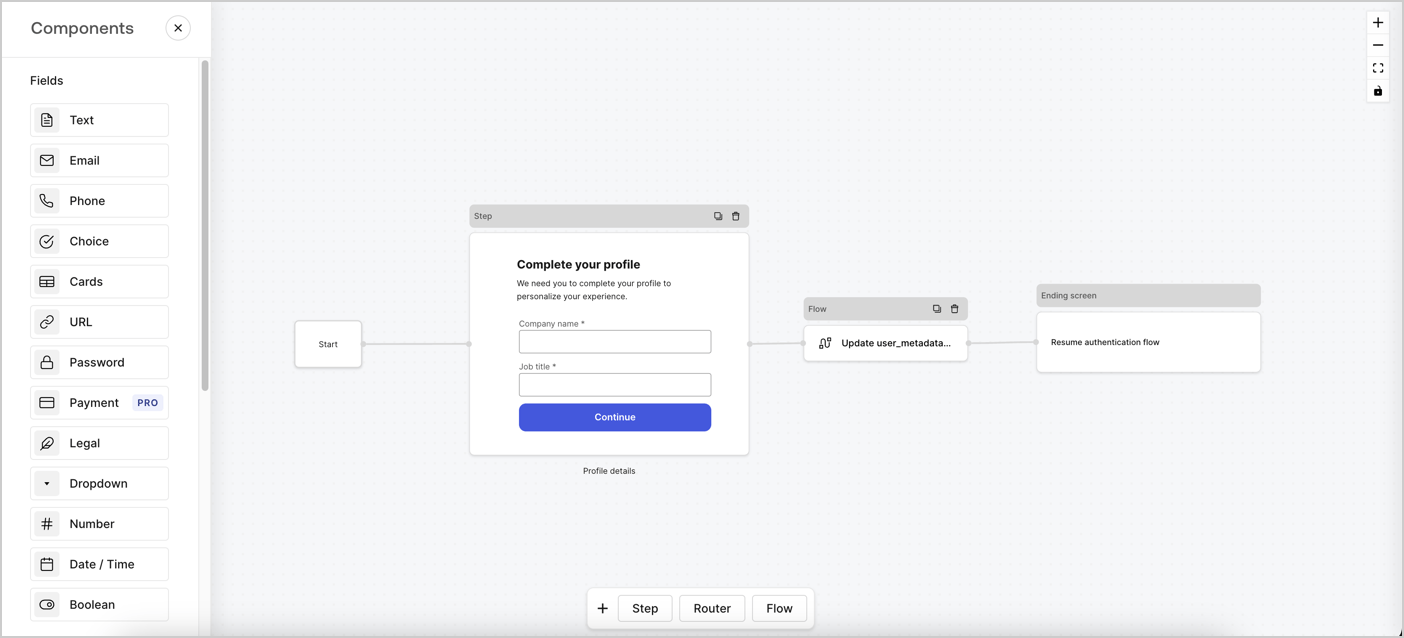
Forms for Actions allows you to create progressive profiling flows to decide when to prompt users to collect missing information, such as company name and job title, and store them as `user_metadata` attributes.
<Frame>
  <img src="https://mintcdn.com/docs-staging-fix-ss-log-app-metadata-user-metadata-clarific/s5MfZtEMTkYLgOhP/docs/images/cdy7uua7fh8z/xUx9YmnHvnAqL19JvNtNP/60dae88f893d4ebe8e3523421e960596/Progressive-profle-overview.png?fit=max&auto=format&n=s5MfZtEMTkYLgOhP&q=85&s=5aad64c19780febb01b731d73081319d" alt="Dashboard > Actions > Forms > Form" data-og-width="1404" width="1404" data-og-height="638" height="638" data-path="docs/images/cdy7uua7fh8z/xUx9YmnHvnAqL19JvNtNP/60dae88f893d4ebe8e3523421e960596/Progressive-profle-overview.png" data-optimize="true" data-opv="3" srcset="https://mintcdn.com/docs-staging-fix-ss-log-app-metadata-user-metadata-clarific/s5MfZtEMTkYLgOhP/docs/images/cdy7uua7fh8z/xUx9YmnHvnAqL19JvNtNP/60dae88f893d4ebe8e3523421e960596/Progressive-profle-overview.png?w=280&fit=max&auto=format&n=s5MfZtEMTkYLgOhP&q=85&s=d4b73216b0d0973e67ab0cc9b76b34fd 280w, https://mintcdn.com/docs-staging-fix-ss-log-app-metadata-user-metadata-clarific/s5MfZtEMTkYLgOhP/docs/images/cdy7uua7fh8z/xUx9YmnHvnAqL19JvNtNP/60dae88f893d4ebe8e3523421e960596/Progressive-profle-overview.png?w=560&fit=max&auto=format&n=s5MfZtEMTkYLgOhP&q=85&s=fb0befe36d6194f6fe340a51dddf3e29 560w, https://mintcdn.com/docs-staging-fix-ss-log-app-metadata-user-metadata-clarific/s5MfZtEMTkYLgOhP/docs/images/cdy7uua7fh8z/xUx9YmnHvnAqL19JvNtNP/60dae88f893d4ebe8e3523421e960596/Progressive-profle-overview.png?w=840&fit=max&auto=format&n=s5MfZtEMTkYLgOhP&q=85&s=1b65d5ec1c8f48be902c9d27adfb0896 840w, https://mintcdn.com/docs-staging-fix-ss-log-app-metadata-user-metadata-clarific/s5MfZtEMTkYLgOhP/docs/images/cdy7uua7fh8z/xUx9YmnHvnAqL19JvNtNP/60dae88f893d4ebe8e3523421e960596/Progressive-profle-overview.png?w=1100&fit=max&auto=format&n=s5MfZtEMTkYLgOhP&q=85&s=23ead0ad631d88e46f42a4955342b23c 1100w, https://mintcdn.com/docs-staging-fix-ss-log-app-metadata-user-metadata-clarific/s5MfZtEMTkYLgOhP/docs/images/cdy7uua7fh8z/xUx9YmnHvnAqL19JvNtNP/60dae88f893d4ebe8e3523421e960596/Progressive-profle-overview.png?w=1650&fit=max&auto=format&n=s5MfZtEMTkYLgOhP&q=85&s=2d7d20eef55f70e46212c0655281fffc 1650w, https://mintcdn.com/docs-staging-fix-ss-log-app-metadata-user-metadata-clarific/s5MfZtEMTkYLgOhP/docs/images/cdy7uua7fh8z/xUx9YmnHvnAqL19JvNtNP/60dae88f893d4ebe8e3523421e960596/Progressive-profle-overview.png?w=2500&fit=max&auto=format&n=s5MfZtEMTkYLgOhP&q=85&s=720a6c9a112d3a2d2d61998b9de569f8 2500w" />
</Frame>

The sections below outline how you can create a progressive profile form using nodes and flows, along with steps for adding your form to a [Post Login Action](/docs/customize/actions/explore-triggers/signup-and-login-triggers/login-trigger).

## Create a form from scratch

Follow these steps to create a form to gather information:

1. Open the Form editor by selecting **Auth0 Dashboard > Actions > Forms.**
2. Select **Create Form** > **Start from scratch**.

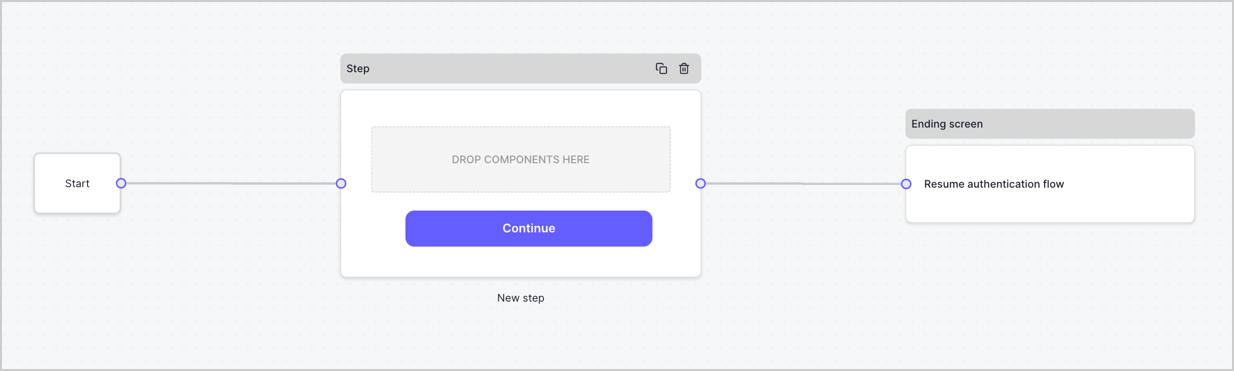
By default, a new form contains a Start node, a Step node, and an Ending screen node.
<Frame>
  <img src="https://mintcdn.com/docs-staging-fix-ss-log-app-metadata-user-metadata-clarific/QjIj_9wVkkfB0LYV/docs/images/cdy7uua7fh8z/2TZ9jSjgEcARFpULI6hz4R/a4319a1bd482f2ee5cc23100fdb2f42c/New-form-Forms-for-action-use-case.png?fit=max&auto=format&n=QjIj_9wVkkfB0LYV&q=85&s=684555b61c4c14e7bb3ac5e1655f9197" alt="Dashboard > Forms > Use Cases > Form" data-og-width="1234" width="1234" data-og-height="371" height="371" data-path="docs/images/cdy7uua7fh8z/2TZ9jSjgEcARFpULI6hz4R/a4319a1bd482f2ee5cc23100fdb2f42c/New-form-Forms-for-action-use-case.png" data-optimize="true" data-opv="3" srcset="https://mintcdn.com/docs-staging-fix-ss-log-app-metadata-user-metadata-clarific/QjIj_9wVkkfB0LYV/docs/images/cdy7uua7fh8z/2TZ9jSjgEcARFpULI6hz4R/a4319a1bd482f2ee5cc23100fdb2f42c/New-form-Forms-for-action-use-case.png?w=280&fit=max&auto=format&n=QjIj_9wVkkfB0LYV&q=85&s=54d7631f870122f8f6bd0b2cb716f96a 280w, https://mintcdn.com/docs-staging-fix-ss-log-app-metadata-user-metadata-clarific/QjIj_9wVkkfB0LYV/docs/images/cdy7uua7fh8z/2TZ9jSjgEcARFpULI6hz4R/a4319a1bd482f2ee5cc23100fdb2f42c/New-form-Forms-for-action-use-case.png?w=560&fit=max&auto=format&n=QjIj_9wVkkfB0LYV&q=85&s=3ca9b3c151b63936e3d5f22959da8801 560w, https://mintcdn.com/docs-staging-fix-ss-log-app-metadata-user-metadata-clarific/QjIj_9wVkkfB0LYV/docs/images/cdy7uua7fh8z/2TZ9jSjgEcARFpULI6hz4R/a4319a1bd482f2ee5cc23100fdb2f42c/New-form-Forms-for-action-use-case.png?w=840&fit=max&auto=format&n=QjIj_9wVkkfB0LYV&q=85&s=858b3d533e54e1176222bdc4fbcf14d7 840w, https://mintcdn.com/docs-staging-fix-ss-log-app-metadata-user-metadata-clarific/QjIj_9wVkkfB0LYV/docs/images/cdy7uua7fh8z/2TZ9jSjgEcARFpULI6hz4R/a4319a1bd482f2ee5cc23100fdb2f42c/New-form-Forms-for-action-use-case.png?w=1100&fit=max&auto=format&n=QjIj_9wVkkfB0LYV&q=85&s=5d5a44e99e903b8e7f3040b82d3ad9bb 1100w, https://mintcdn.com/docs-staging-fix-ss-log-app-metadata-user-metadata-clarific/QjIj_9wVkkfB0LYV/docs/images/cdy7uua7fh8z/2TZ9jSjgEcARFpULI6hz4R/a4319a1bd482f2ee5cc23100fdb2f42c/New-form-Forms-for-action-use-case.png?w=1650&fit=max&auto=format&n=QjIj_9wVkkfB0LYV&q=85&s=6236fc8176eb02b9fd1ec2c1d4331be2 1650w, https://mintcdn.com/docs-staging-fix-ss-log-app-metadata-user-metadata-clarific/QjIj_9wVkkfB0LYV/docs/images/cdy7uua7fh8z/2TZ9jSjgEcARFpULI6hz4R/a4319a1bd482f2ee5cc23100fdb2f42c/New-form-Forms-for-action-use-case.png?w=2500&fit=max&auto=format&n=QjIj_9wVkkfB0LYV&q=85&s=e07711b13b71a5212d82f7196e8dc6d7 2500w" />
</Frame>

### Configure the Step node

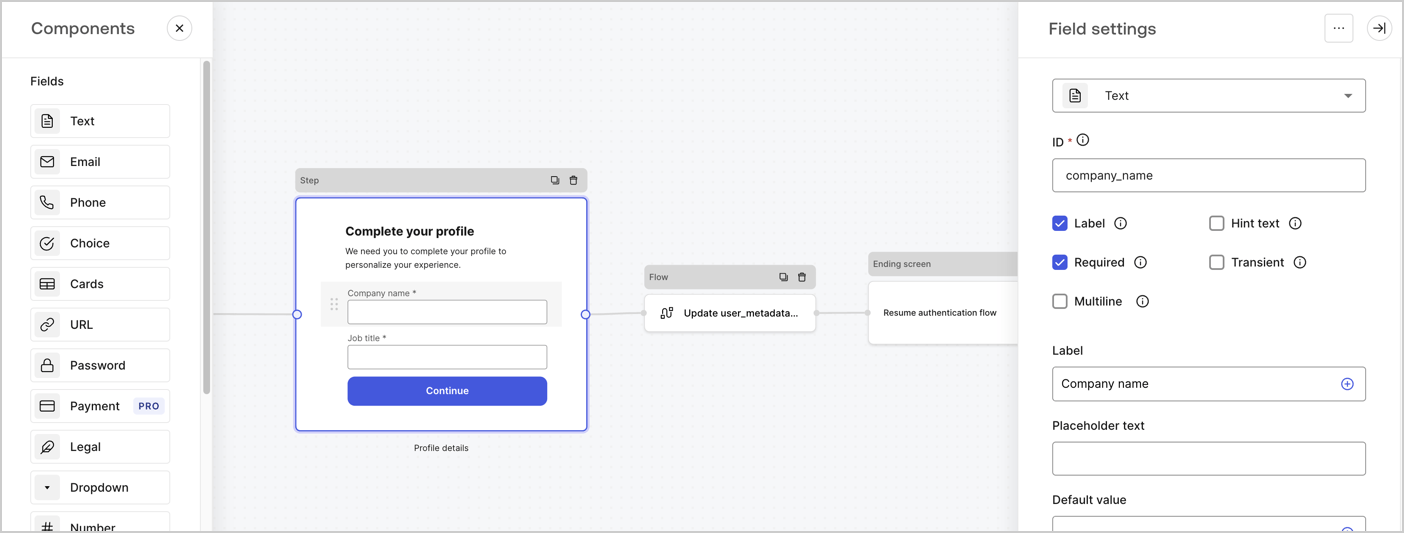
The Step node is the graphical interface visible to users. Add [Fields](/docs/customize/forms/nodes-and-components) to the Step node to collect the user's company name and job title values by following these steps:

1. Drag a **Rich text** field from the **Components menu** into the **Step** node.

   * **Rich text**: Enter a custom message.

     * **Example**: `Complete your profile! We need you to complete your profile to personalize your experience.`
   * Select **Save**.
2. Drag a **Text** field into the **Step** node.

   * **ID**: Enter `company_name`.
   * **Label**: Enable the checkbox.
   * **Label**: Enter `Company name`.
   * **Required**: Enable the checkbox.
   * Select **Save**.
3. Drag a **Text** field into the **Step** node.

   1. **ID**: Enter `job_title`.
   2. **Label**: Enter `Job title`.
   3. **Label**: Enable the checkbox.
   4. **Required**: Enable the checkbox.
   5. Select **Save**.
4. Select **Publish** to save.
<Frame>
  <img src="https://mintcdn.com/docs-staging-fix-ss-log-app-metadata-user-metadata-clarific/of7ZVNXQNIxOwnRd/docs/images/cdy7uua7fh8z/6H1lRzwKyYioQyQJ9MtIoM/aa248e92fc028a68a5b92ff361a11644/progressive-profile-step.png?fit=max&auto=format&n=of7ZVNXQNIxOwnRd&q=85&s=0205b1114619631e05ac0640babbe508" alt="Dashboard > Actions > Forms > Form > Step node" data-og-width="1404" width="1404" data-og-height="533" height="533" data-path="docs/images/cdy7uua7fh8z/6H1lRzwKyYioQyQJ9MtIoM/aa248e92fc028a68a5b92ff361a11644/progressive-profile-step.png" data-optimize="true" data-opv="3" srcset="https://mintcdn.com/docs-staging-fix-ss-log-app-metadata-user-metadata-clarific/of7ZVNXQNIxOwnRd/docs/images/cdy7uua7fh8z/6H1lRzwKyYioQyQJ9MtIoM/aa248e92fc028a68a5b92ff361a11644/progressive-profile-step.png?w=280&fit=max&auto=format&n=of7ZVNXQNIxOwnRd&q=85&s=49fdfb501f00e5a6e9a4d4f34daad89b 280w, https://mintcdn.com/docs-staging-fix-ss-log-app-metadata-user-metadata-clarific/of7ZVNXQNIxOwnRd/docs/images/cdy7uua7fh8z/6H1lRzwKyYioQyQJ9MtIoM/aa248e92fc028a68a5b92ff361a11644/progressive-profile-step.png?w=560&fit=max&auto=format&n=of7ZVNXQNIxOwnRd&q=85&s=9c59021db8b79f13026a5fac50a48876 560w, https://mintcdn.com/docs-staging-fix-ss-log-app-metadata-user-metadata-clarific/of7ZVNXQNIxOwnRd/docs/images/cdy7uua7fh8z/6H1lRzwKyYioQyQJ9MtIoM/aa248e92fc028a68a5b92ff361a11644/progressive-profile-step.png?w=840&fit=max&auto=format&n=of7ZVNXQNIxOwnRd&q=85&s=3974cb156717b747bbc54d7178514244 840w, https://mintcdn.com/docs-staging-fix-ss-log-app-metadata-user-metadata-clarific/of7ZVNXQNIxOwnRd/docs/images/cdy7uua7fh8z/6H1lRzwKyYioQyQJ9MtIoM/aa248e92fc028a68a5b92ff361a11644/progressive-profile-step.png?w=1100&fit=max&auto=format&n=of7ZVNXQNIxOwnRd&q=85&s=8ba0694f9a1c15823a4901f853c876dc 1100w, https://mintcdn.com/docs-staging-fix-ss-log-app-metadata-user-metadata-clarific/of7ZVNXQNIxOwnRd/docs/images/cdy7uua7fh8z/6H1lRzwKyYioQyQJ9MtIoM/aa248e92fc028a68a5b92ff361a11644/progressive-profile-step.png?w=1650&fit=max&auto=format&n=of7ZVNXQNIxOwnRd&q=85&s=0c84f169c5c4d216541b40f85279146c 1650w, https://mintcdn.com/docs-staging-fix-ss-log-app-metadata-user-metadata-clarific/of7ZVNXQNIxOwnRd/docs/images/cdy7uua7fh8z/6H1lRzwKyYioQyQJ9MtIoM/aa248e92fc028a68a5b92ff361a11644/progressive-profile-step.png?w=2500&fit=max&auto=format&n=of7ZVNXQNIxOwnRd&q=85&s=d2c4e451f7140b7752202c24e6c002e6 2500w" />
</Frame>

### Configure the flow node

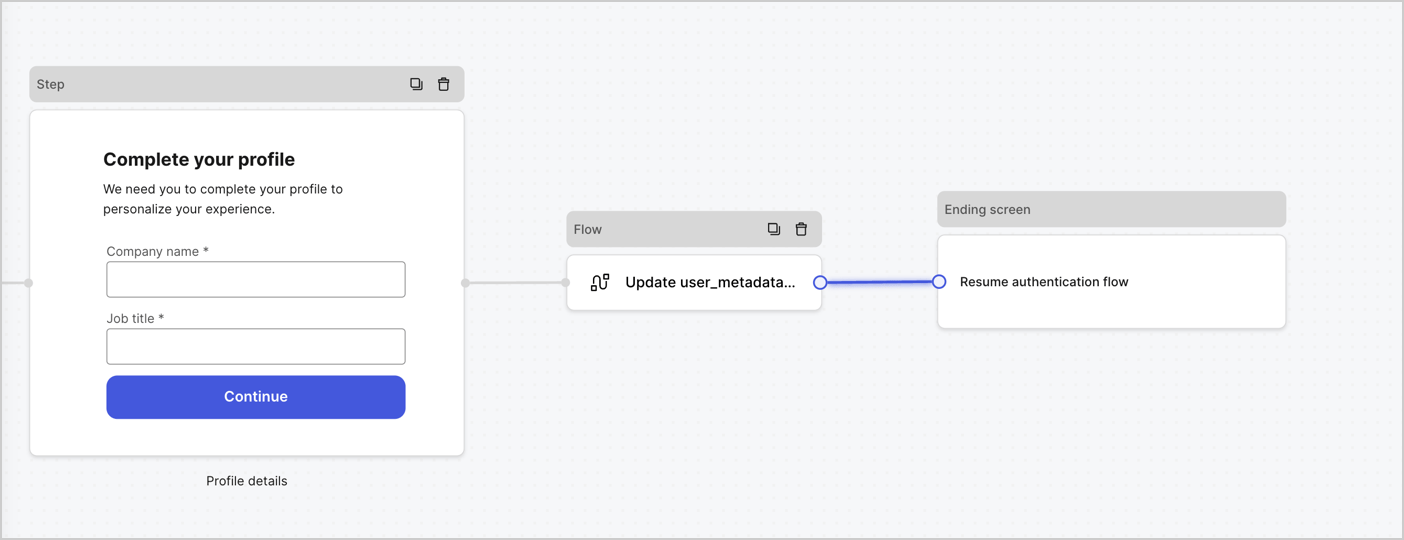
Add a **Flow** node after the **Step** node to update the `user_metadata` and resume the authentication flow by following these steps:

1. Select **Flow** from the bottom of the Form editor.
2. Remove the existing link between the **Step** and **Ending Screen** nodes.
3. Select the new **Flow** > **Click to add a flow** > **Create a new flow.**

   * Enter `Update user_metadata` in the **Name** field.
   * Select **Create**.
   * Select **Save**.
4. Link the **Flow** node to the **Step** and **Ending Screen** nodes as pictured below.
5. Select **Publish** to save.
<Frame>
  <img src="https://mintcdn.com/docs-staging-fix-ss-log-app-metadata-user-metadata-clarific/7JVhnXDOnKg4qiSt/docs/images/cdy7uua7fh8z/5C91DaWn4LGtJT9BF87ssu/095171d0c452a287c44bfde12fd6d13f/link-nodes.png?fit=max&auto=format&n=7JVhnXDOnKg4qiSt&q=85&s=2c041e26453aaba540402ede1cdb9c10" alt="Dashboard > Actions > Forms > Form" data-og-width="1404" width="1404" data-og-height="540" height="540" data-path="docs/images/cdy7uua7fh8z/5C91DaWn4LGtJT9BF87ssu/095171d0c452a287c44bfde12fd6d13f/link-nodes.png" data-optimize="true" data-opv="3" srcset="https://mintcdn.com/docs-staging-fix-ss-log-app-metadata-user-metadata-clarific/7JVhnXDOnKg4qiSt/docs/images/cdy7uua7fh8z/5C91DaWn4LGtJT9BF87ssu/095171d0c452a287c44bfde12fd6d13f/link-nodes.png?w=280&fit=max&auto=format&n=7JVhnXDOnKg4qiSt&q=85&s=3f0fa879876345ff3d2d2f330ac970c1 280w, https://mintcdn.com/docs-staging-fix-ss-log-app-metadata-user-metadata-clarific/7JVhnXDOnKg4qiSt/docs/images/cdy7uua7fh8z/5C91DaWn4LGtJT9BF87ssu/095171d0c452a287c44bfde12fd6d13f/link-nodes.png?w=560&fit=max&auto=format&n=7JVhnXDOnKg4qiSt&q=85&s=a1ba12627ad1442be828a7b30f8453ac 560w, https://mintcdn.com/docs-staging-fix-ss-log-app-metadata-user-metadata-clarific/7JVhnXDOnKg4qiSt/docs/images/cdy7uua7fh8z/5C91DaWn4LGtJT9BF87ssu/095171d0c452a287c44bfde12fd6d13f/link-nodes.png?w=840&fit=max&auto=format&n=7JVhnXDOnKg4qiSt&q=85&s=9211226e6e7474449a04979ed64c871e 840w, https://mintcdn.com/docs-staging-fix-ss-log-app-metadata-user-metadata-clarific/7JVhnXDOnKg4qiSt/docs/images/cdy7uua7fh8z/5C91DaWn4LGtJT9BF87ssu/095171d0c452a287c44bfde12fd6d13f/link-nodes.png?w=1100&fit=max&auto=format&n=7JVhnXDOnKg4qiSt&q=85&s=6a1b8a2e660daa1b2dba87bb0c2c3173 1100w, https://mintcdn.com/docs-staging-fix-ss-log-app-metadata-user-metadata-clarific/7JVhnXDOnKg4qiSt/docs/images/cdy7uua7fh8z/5C91DaWn4LGtJT9BF87ssu/095171d0c452a287c44bfde12fd6d13f/link-nodes.png?w=1650&fit=max&auto=format&n=7JVhnXDOnKg4qiSt&q=85&s=bbba4aa264a3b6e95b9bb0ae29f29373 1650w, https://mintcdn.com/docs-staging-fix-ss-log-app-metadata-user-metadata-clarific/7JVhnXDOnKg4qiSt/docs/images/cdy7uua7fh8z/5C91DaWn4LGtJT9BF87ssu/095171d0c452a287c44bfde12fd6d13f/link-nodes.png?w=2500&fit=max&auto=format&n=7JVhnXDOnKg4qiSt&q=85&s=9094ed470685f5488f29da20d33baae4 2500w" />
</Frame>

Add an Auth0 Update user action to the flow by following these steps:

1. Select the **Update user\_metadata** flow, then select the **Edit Flow** to open the Flow editor in a new tab.
2. Below the **Start** action, select the **+** icon to add an **Update user** action. Complete the fields below, then select **Save** to continue.

   * **Connection**: Select from the dropdown the Vault connection to your M2M application.

   * **User ID**: Enter `{{context.user.user_id}}`.

   * **Body**: Copy and paste the following code to update the user\_metadata with `job_title` and `company_name` properties.

     ```json lines theme={null}
     {
        "user_metadata": {
           "job_title": "{{fields.job_title}}",
           "company_name": "{{fields.company_name}}"
        }
     }
     ```

   * Select **Save**.
3. Select **Publish** to save.

<Frame>
  <img src="https://mintcdn.com/docs-staging-fix-ss-log-app-metadata-user-metadata-clarific/XNdc3GsPkTsMpUXd/docs/images/cdy7uua7fh8z/65Jx4W5oIZJyyvA8z4HqIx/0661b1a8ca6361c54fc4fef07ba59f0b/update-user.png?fit=max&auto=format&n=XNdc3GsPkTsMpUXd&q=85&s=a13940f96e2f8554b31bf3e6c4bebb9c" alt="Dashboard > Actions > Forms > Flows" data-og-width="1404" width="1404" data-og-height="244" height="244" data-path="docs/images/cdy7uua7fh8z/65Jx4W5oIZJyyvA8z4HqIx/0661b1a8ca6361c54fc4fef07ba59f0b/update-user.png" data-optimize="true" data-opv="3" srcset="https://mintcdn.com/docs-staging-fix-ss-log-app-metadata-user-metadata-clarific/XNdc3GsPkTsMpUXd/docs/images/cdy7uua7fh8z/65Jx4W5oIZJyyvA8z4HqIx/0661b1a8ca6361c54fc4fef07ba59f0b/update-user.png?w=280&fit=max&auto=format&n=XNdc3GsPkTsMpUXd&q=85&s=cdc2a07e7beb602f027b0152eec08440 280w, https://mintcdn.com/docs-staging-fix-ss-log-app-metadata-user-metadata-clarific/XNdc3GsPkTsMpUXd/docs/images/cdy7uua7fh8z/65Jx4W5oIZJyyvA8z4HqIx/0661b1a8ca6361c54fc4fef07ba59f0b/update-user.png?w=560&fit=max&auto=format&n=XNdc3GsPkTsMpUXd&q=85&s=9e811272db69f23b57ee7ff922f8cd9e 560w, https://mintcdn.com/docs-staging-fix-ss-log-app-metadata-user-metadata-clarific/XNdc3GsPkTsMpUXd/docs/images/cdy7uua7fh8z/65Jx4W5oIZJyyvA8z4HqIx/0661b1a8ca6361c54fc4fef07ba59f0b/update-user.png?w=840&fit=max&auto=format&n=XNdc3GsPkTsMpUXd&q=85&s=c86e0787f65748c1dbe3d12bdc972db3 840w, https://mintcdn.com/docs-staging-fix-ss-log-app-metadata-user-metadata-clarific/XNdc3GsPkTsMpUXd/docs/images/cdy7uua7fh8z/65Jx4W5oIZJyyvA8z4HqIx/0661b1a8ca6361c54fc4fef07ba59f0b/update-user.png?w=1100&fit=max&auto=format&n=XNdc3GsPkTsMpUXd&q=85&s=03ce94c7933c1c74280bd94f5f9d93a8 1100w, https://mintcdn.com/docs-staging-fix-ss-log-app-metadata-user-metadata-clarific/XNdc3GsPkTsMpUXd/docs/images/cdy7uua7fh8z/65Jx4W5oIZJyyvA8z4HqIx/0661b1a8ca6361c54fc4fef07ba59f0b/update-user.png?w=1650&fit=max&auto=format&n=XNdc3GsPkTsMpUXd&q=85&s=7776145768131e1decfdadb85184916c 1650w, https://mintcdn.com/docs-staging-fix-ss-log-app-metadata-user-metadata-clarific/XNdc3GsPkTsMpUXd/docs/images/cdy7uua7fh8z/65Jx4W5oIZJyyvA8z4HqIx/0661b1a8ca6361c54fc4fef07ba59f0b/update-user.png?w=2500&fit=max&auto=format&n=XNdc3GsPkTsMpUXd&q=85&s=0c21dd7e15602dc9ea0c66d8f000a94b 2500w" />
</Frame>

### Retrieve the form render code

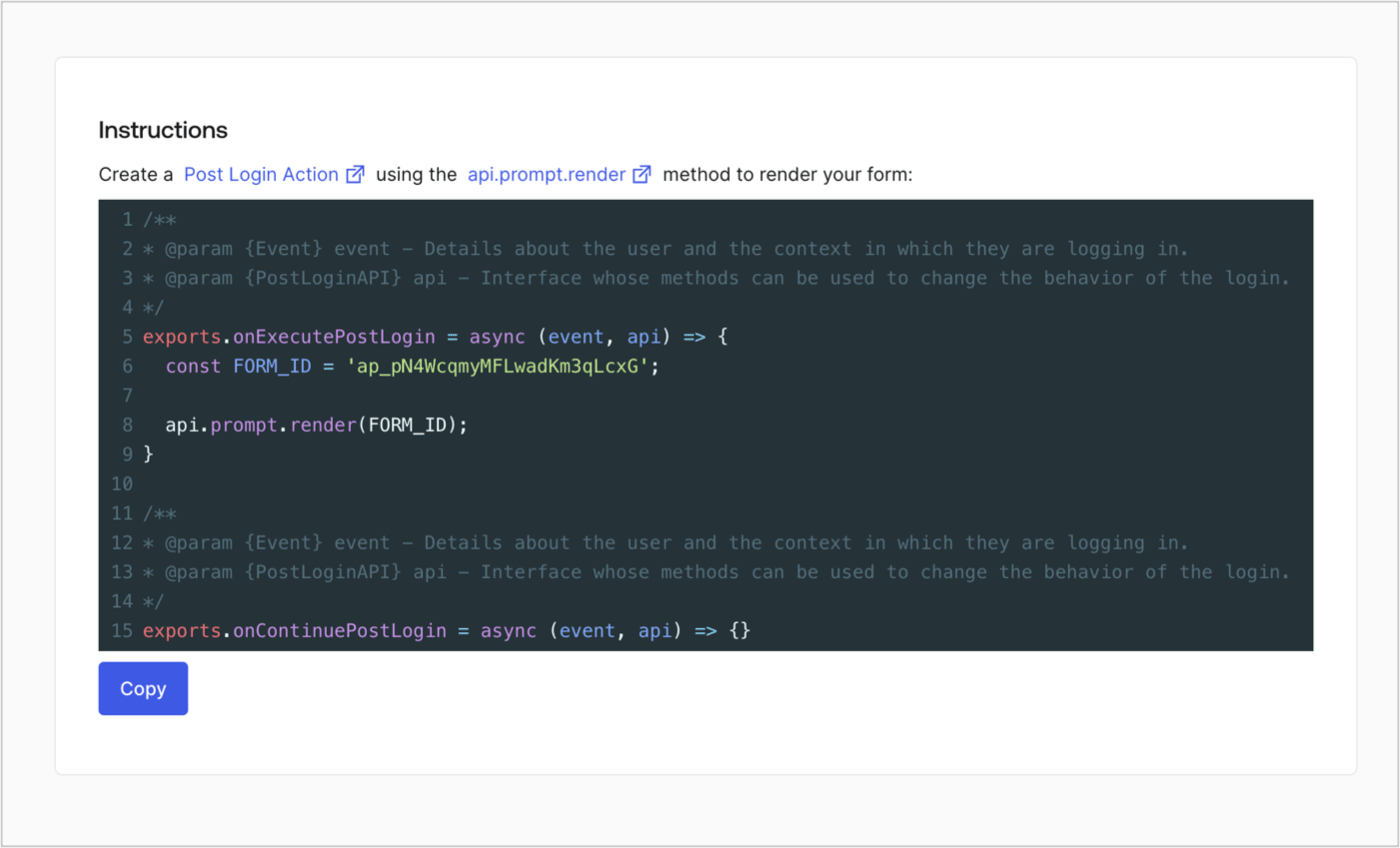
Retrieve the form render code to visually render the form with a custom Post Login Action by following these steps:

* From the Form editor, select **`<> Render`**.
* Select **Copy**.
<Frame>
  <img src="https://mintcdn.com/docs-staging-fix-ss-log-app-metadata-user-metadata-clarific/gdZv38iLH4nz4NZQ/docs/images/cdy7uua7fh8z/2EIUzc539sq9lwoTKbjoJv/496a864c0fc44a782c9cadca119dbfb0/embed.png?fit=max&auto=format&n=gdZv38iLH4nz4NZQ&q=85&s=887f5f61eca5b799379310169cb9f513" alt="Dashboard > Actions > Forms > Form > Embed" data-og-width="1400" width="1400" data-og-height="848" height="848" data-path="docs/images/cdy7uua7fh8z/2EIUzc539sq9lwoTKbjoJv/496a864c0fc44a782c9cadca119dbfb0/embed.png" data-optimize="true" data-opv="3" srcset="https://mintcdn.com/docs-staging-fix-ss-log-app-metadata-user-metadata-clarific/gdZv38iLH4nz4NZQ/docs/images/cdy7uua7fh8z/2EIUzc539sq9lwoTKbjoJv/496a864c0fc44a782c9cadca119dbfb0/embed.png?w=280&fit=max&auto=format&n=gdZv38iLH4nz4NZQ&q=85&s=b5bd7204ccf488a41d4dc4240464b738 280w, https://mintcdn.com/docs-staging-fix-ss-log-app-metadata-user-metadata-clarific/gdZv38iLH4nz4NZQ/docs/images/cdy7uua7fh8z/2EIUzc539sq9lwoTKbjoJv/496a864c0fc44a782c9cadca119dbfb0/embed.png?w=560&fit=max&auto=format&n=gdZv38iLH4nz4NZQ&q=85&s=e18bdd9a8940d0fc1883e4abc45aca8d 560w, https://mintcdn.com/docs-staging-fix-ss-log-app-metadata-user-metadata-clarific/gdZv38iLH4nz4NZQ/docs/images/cdy7uua7fh8z/2EIUzc539sq9lwoTKbjoJv/496a864c0fc44a782c9cadca119dbfb0/embed.png?w=840&fit=max&auto=format&n=gdZv38iLH4nz4NZQ&q=85&s=7d8dc9916d32f7526a02679c84c1a700 840w, https://mintcdn.com/docs-staging-fix-ss-log-app-metadata-user-metadata-clarific/gdZv38iLH4nz4NZQ/docs/images/cdy7uua7fh8z/2EIUzc539sq9lwoTKbjoJv/496a864c0fc44a782c9cadca119dbfb0/embed.png?w=1100&fit=max&auto=format&n=gdZv38iLH4nz4NZQ&q=85&s=724c9269e0571649a80e0e4455aa19f4 1100w, https://mintcdn.com/docs-staging-fix-ss-log-app-metadata-user-metadata-clarific/gdZv38iLH4nz4NZQ/docs/images/cdy7uua7fh8z/2EIUzc539sq9lwoTKbjoJv/496a864c0fc44a782c9cadca119dbfb0/embed.png?w=1650&fit=max&auto=format&n=gdZv38iLH4nz4NZQ&q=85&s=9c9d2926bba8ac8375cf7b9421db317f 1650w, https://mintcdn.com/docs-staging-fix-ss-log-app-metadata-user-metadata-clarific/gdZv38iLH4nz4NZQ/docs/images/cdy7uua7fh8z/2EIUzc539sq9lwoTKbjoJv/496a864c0fc44a782c9cadca119dbfb0/embed.png?w=2500&fit=max&auto=format&n=gdZv38iLH4nz4NZQ&q=85&s=5502d0b53e11b0124f850c25a9cc55da 2500w" />
</Frame>

## Create a Post Login Action

Create a post-login Action to render your form by following these steps:

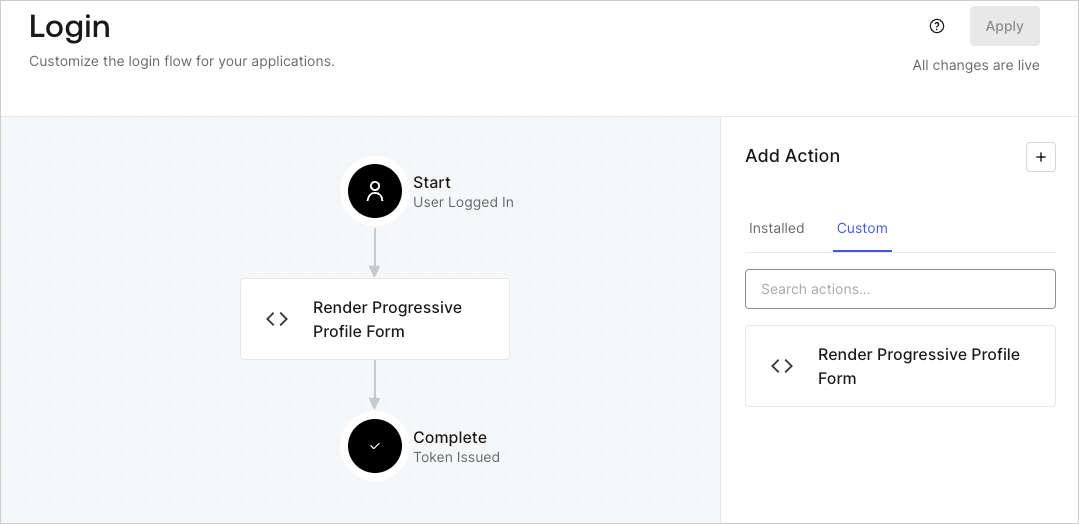
1. Navigate to **Auth0 Dashboard > Actions > Flows > Login.**
2. Select the **+** icon and select **Build from scratch**:

   * **Name**: Enter `Render Progressive Profile Form`.
   * **Trigger**: Select `Login / Post Login`.
   * **Runtime**: Select the recommended version.
3. Select **Create**.

To configure the post-login Action:

1. Delete the existing code from the Code editor.
2. Paste the form embed code into the Code editor.
3. Edit the code to define the conditional logic that will render the form.

   ```javascript lines theme={null}
   /**
   * @param {Event} event - Details about the user and the context in which they are logging in.
   * @param {PostLoginAPI} api - Interface whose methods can be used to change the behavior of the login.
   */
   exports.onExecutePostLogin = async (event, api) => {
     const FORM_ID = 'REPLACE_WITH_YOUR_FORM_ID';

     if (
       event.stats.logins_count > 2 &&
       !event.user.user_metadata.company_name &&
       !event.user.user_metadata.job_title
     ) {
       api.prompt.render(FORM_ID);
     }
   }

   exports.onContinuePostLogin = async (event, api) => { }
   ```

   <Callout icon="file-lines" color="#0EA5E9" iconType="regular">
     The example code above will render the form when a user has a login count > 2 and is missing the user metadata company\_name and job\_title properties.
   </Callout>
4. Select **Deploy.**
5. Drag and Drop the **Render Progressive Profile Form** Action to the **Login** flow.
   <Frame>
     <img src="https://mintcdn.com/docs-staging-fix-ss-log-app-metadata-user-metadata-clarific/Sutu7Cn6h0m5UazP/docs/images/cdy7uua7fh8z/1QjjZdpTqTxx012UDN4xk9/99fba5ef4068a5688f1762eea7f42976/renderprogessiveprofile.png?fit=max&auto=format&n=Sutu7Cn6h0m5UazP&q=85&s=362ca14ebc5c9ee4f974f1a5e1e57d88" alt="Dashboard > Forms > Use Cases Progressive Profile Login Action" data-og-width="1079" width="1079" data-og-height="524" height="524" data-path="docs/images/cdy7uua7fh8z/1QjjZdpTqTxx012UDN4xk9/99fba5ef4068a5688f1762eea7f42976/renderprogessiveprofile.png" data-optimize="true" data-opv="3" srcset="https://mintcdn.com/docs-staging-fix-ss-log-app-metadata-user-metadata-clarific/Sutu7Cn6h0m5UazP/docs/images/cdy7uua7fh8z/1QjjZdpTqTxx012UDN4xk9/99fba5ef4068a5688f1762eea7f42976/renderprogessiveprofile.png?w=280&fit=max&auto=format&n=Sutu7Cn6h0m5UazP&q=85&s=91ed958bb843b597df9efa8f6df3a534 280w, https://mintcdn.com/docs-staging-fix-ss-log-app-metadata-user-metadata-clarific/Sutu7Cn6h0m5UazP/docs/images/cdy7uua7fh8z/1QjjZdpTqTxx012UDN4xk9/99fba5ef4068a5688f1762eea7f42976/renderprogessiveprofile.png?w=560&fit=max&auto=format&n=Sutu7Cn6h0m5UazP&q=85&s=772ddd60c3c8991453aed15b3a459335 560w, https://mintcdn.com/docs-staging-fix-ss-log-app-metadata-user-metadata-clarific/Sutu7Cn6h0m5UazP/docs/images/cdy7uua7fh8z/1QjjZdpTqTxx012UDN4xk9/99fba5ef4068a5688f1762eea7f42976/renderprogessiveprofile.png?w=840&fit=max&auto=format&n=Sutu7Cn6h0m5UazP&q=85&s=6ed763646d0a992ec9bc2af531640d0f 840w, https://mintcdn.com/docs-staging-fix-ss-log-app-metadata-user-metadata-clarific/Sutu7Cn6h0m5UazP/docs/images/cdy7uua7fh8z/1QjjZdpTqTxx012UDN4xk9/99fba5ef4068a5688f1762eea7f42976/renderprogessiveprofile.png?w=1100&fit=max&auto=format&n=Sutu7Cn6h0m5UazP&q=85&s=a86701a585cdcc194df9d8e76d4e57a5 1100w, https://mintcdn.com/docs-staging-fix-ss-log-app-metadata-user-metadata-clarific/Sutu7Cn6h0m5UazP/docs/images/cdy7uua7fh8z/1QjjZdpTqTxx012UDN4xk9/99fba5ef4068a5688f1762eea7f42976/renderprogessiveprofile.png?w=1650&fit=max&auto=format&n=Sutu7Cn6h0m5UazP&q=85&s=3534a3be07ea5e80f3aacfef345c0bb8 1650w, https://mintcdn.com/docs-staging-fix-ss-log-app-metadata-user-metadata-clarific/Sutu7Cn6h0m5UazP/docs/images/cdy7uua7fh8z/1QjjZdpTqTxx012UDN4xk9/99fba5ef4068a5688f1762eea7f42976/renderprogessiveprofile.png?w=2500&fit=max&auto=format&n=Sutu7Cn6h0m5UazP&q=85&s=766ebeed52387cc930a94c0275bf24ed 2500w" />
   </Frame>
6. Select **Apply**.

### Test implementation

Test the implementation by following these steps:

1. Log in with an existing user whose login count is greater than 2 and their `user_metadata` attributes `company_name` and `job_title` have no values.
2. The post-login action in the Login flow will render the form and prompt for the information.
3. Select **Auth0 Dashboard > User Management > Users,** locate the user and verify that the `user_metadata` attributes `company_name` and `job_title` contain information.
